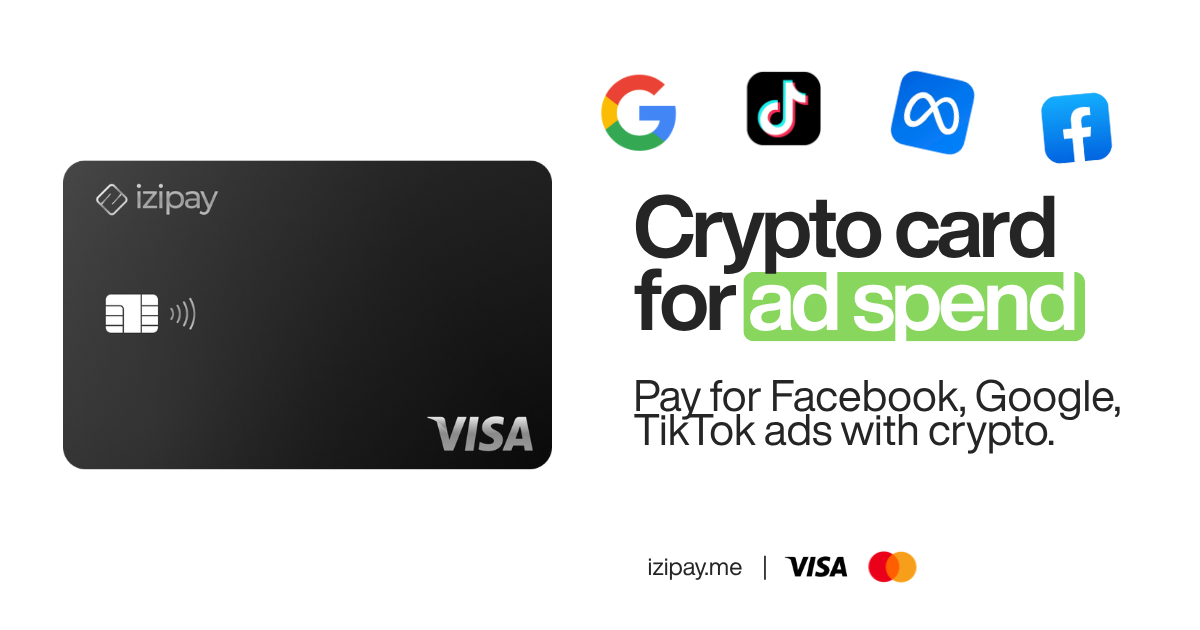
Your Galaxy already has a contactless wallet built in - but the bank card it wants is exactly what a lot of crypto holders do not have. The fix is not a bank. It is a virtual crypto card that Samsung Wallet treats like any other Visa or Mastercard: add it once, then tap your phone at the terminal.
This guide shows how to add a crypto card to Samsung Pay (now Samsung Wallet), what to prepare, and how to get past the one verification snag that trips people up. We use the IZIPAY no-KYC card as the example, because it issues in about a minute, needs only an email, and behaves like a normal card once it is in your wallet.
Samsung Pay or Samsung Wallet - what changed
On newer Galaxy phones "Samsung Pay" now lives inside the Samsung Wallet app. The tap-to-pay function is the same; the app that holds your cards is just renamed and expanded. Wherever this guide says Samsung Pay, open Samsung Wallet on your phone. Availability depends on your country and device - Samsung Wallet payments are live in many regions but not all, so check that tap-to-pay is supported where you are before you start.
Can you add a crypto card to Samsung Wallet?
Yes, when the card is a standard Visa or Mastercard that supports mobile wallets - which a good virtual crypto card is. Samsung Wallet does not care that the balance came from USDT instead of a salary. It checks that the card number, expiry, CVV and billing details are valid, and verifies the card with a one-time code. A virtual crypto card gives it all of that, then works at any contactless terminal exactly like a bank card.
The only real difference is funding. Instead of a bank transfer you top the card up with USDT, USDC or BTC, and the balance lands in a spendable fiat amount - no bank account, no paperwork.
What you need before you start
- An IZIPAY account - sign up with an email. Standard individual use needs no KYC, no passport and no selfie.
- A card that supports mobile wallets. IZIPAY issues a virtual Visa and an Apple Pay Mastercard - both are standard network cards you can add to Samsung Wallet.
- Some crypto to load it - USDT, USDC or BTC. A first top-up of $20 - $50 is enough to test everything.
- A Galaxy phone with Samsung Wallet installed and tap-to-pay available in your region.
Step by step: add your crypto card to Samsung Wallet
- Issue the card. In your IZIPAY dashboard, create a virtual card. It is active in about 60 seconds and shows the full number, expiry and CVV.
- Top it up. Send USDT, USDC or BTC to the address shown. Once the network confirms, the balance appears on the card, usually within minutes.
- Open Samsung Wallet on your Galaxy, tap + Add and choose Payment card.
- Enter the card details. Scan the virtual card or type the number, expiry and CVV, then add the billing details when asked.
- Verify the card. When Samsung asks how to confirm it, choose email verification. The one-time code is delivered to you through IZIPAY - enter it, and the card is added.
- Tap to pay. Hold your Galaxy near the terminal to pay in stores, and use the same card for in-app and online checkouts.
Fund with crypto, add to Samsung Wallet, tap to pay - that is the whole loop.
Fixing the most common errors
"Could not add card." Almost always a typo in the number or a mismatch with the billing details. Re-enter carefully, and make sure the card is topped up and active first.
Only a phone call is offered to verify. This is the snag people hit most. It means your regional data does not line up. The wallet decides which verification methods to show based on your account region, device region and network. If those disagree, it can hide the email option and offer only a call. The fix: set your account region, device region and VPN to the same non-sanctioned region, remove the card, then add it again - the email option comes back. Do not call the number; the email method was blocked, not removed.
Samsung Wallet payments not available in your country. Tap-to-pay support is regional. If your country is not covered yet, you can still spend the same IZIPAY card online and in apps, and add it to a supported wallet later.
Which IZIPAY card should you add?
Both are standard network cards that add to Samsung Wallet:
- Virtual Visa - the everyday choice. Instant, no monthly fees, accepted at 40M+ merchants.
- Apple Pay Mastercard - a virtual Mastercard built for mobile wallets; the same instant issuance and no monthly fees. Despite the name it is an ordinary Mastercard, so it adds to Samsung Wallet and Google Pay too.
Either way there is no bank in the middle, no mandatory KYC for standard use, and no monthly fee draining your balance.
Why pay with a crypto card on your Galaxy
- Privacy by default. Your spending is not tied to a bank profile.
- Instant. Card in ~60 seconds, top-ups credited in minutes.
- No KYC for standard use. An email is enough to get started.
- Global acceptance. Works anywhere Visa/Mastercard and tap-to-pay are accepted.
- Pay for what banks block - AI subscriptions, ads and stores that will not take crypto directly. Once the card is in your wallet, they just see an ordinary tap-to-pay card.
Holding crypto is easy; spending it with a tap is the part a card unlocks. Fund an IZIPAY virtual card with USDT, add it to Samsung Wallet, and your Galaxy becomes your crypto card. On other devices? The same walkthrough exists for Apple Pay and Google Pay.